Block social media on your computer
How to block social media on your computer during work
Free forever for 5 sites · or try Pro free for 14 days
The short answer
To block social media on your computer during work: list the sites that actually take your time, decide which ones you need for work, block the rest outright and remove only the feeds from the ones you need, then make ending the block early inconvenient. Talysman does all four on Windows, macOS and Linux, and ending a session early requires a paired USB key plugged in.
A work session with social media half-on
- 9:00
Session starts on schedule. X, Instagram and TikTok are blocked. LinkedIn has no feed.
- 10:40
A recruiter messages. You open LinkedIn, reply, and there's nothing else on the page to read.
- 14:15
Slump. You open Talysman to end the session early. “Insert your key to turn off the blocker.” The key is in the car.
- 14:16
You get a coffee instead and come back to the task.
The checklist
Write down your actual list
Not every site — the three to five you open without deciding to. That's usually the whole problem, and it fits in the free tier.
Split it: need for work vs don't
LinkedIn messages for recruiting, X for a launch, Instagram DMs for a client. Those get a site rule. The rest get blocked.
Block the don't-needs outright
Domain-level, enforced below the browser, so a different browser isn't a way around it.
Remove the feed from the need-to-haves
Site rules hide the feed, recommendations, stories and profiles while keeping search, messages, posting and things you open directly.
Put the off switch somewhere else
Pair a USB drive as the key, start a session, and leave the drive in another room. This is the step that decides whether the first four survive the afternoon. How the key works.
Schedule it
With Pro, recurring windows start the block without you — even if the app is closed. Free for 14 days.
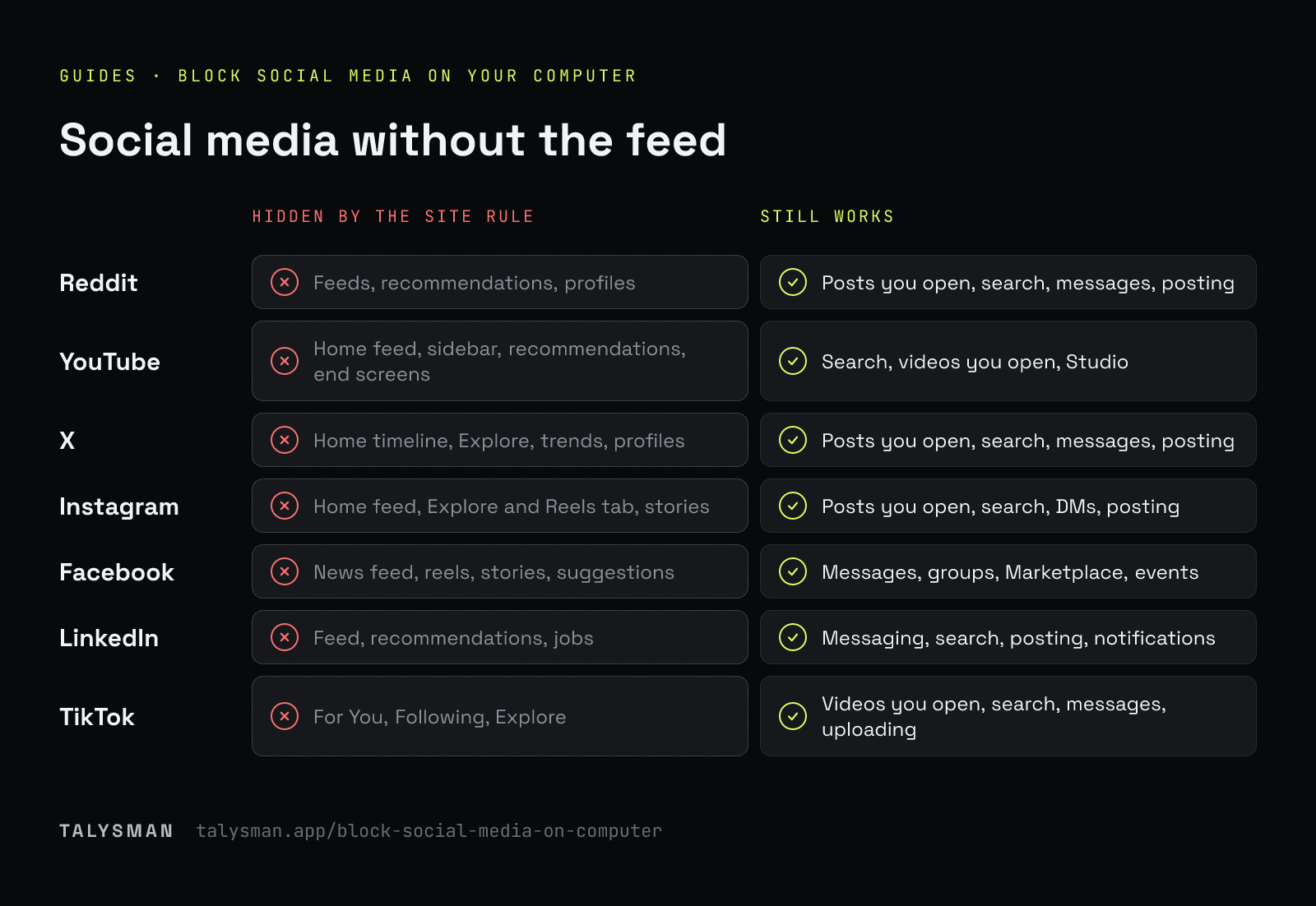
Sites with feed-only rules
Everything else can still be blocked outright. These can also be kept, minus the parts built to keep you scrolling.
| Site | Hidden by default | Still works |
|---|---|---|
| Feeds, recommendations, profiles | Posts you open, search, messages, posting | |
| YouTube | Home feed, sidebar, recommendations, end screens | Search, videos you open, Studio |
| X | Home timeline, Explore, trends, profiles | Posts you open, search, messages, posting |
| Home feed, Explore and Reels tab, stories | Posts you open, search, DMs, posting | |
| News feed, reels, stories, suggestions | Messages, groups, Marketplace, events | |
| Feed, recommendations, jobs | Messaging, search, posting, notifications | |
| TikTok | For You, Following, Explore | Videos you open, search, messages, uploading |
Threads, Bluesky, Pinterest, Hacker News, Substack and a few news sites have rules too. Each rule counts as one of the 5 free websites and needs the Chrome or Firefox extension.
Frequently asked questions
Will this block social media on my phone?
No. Talysman is desktop-only. If your phone is the bigger problem, pair it with a phone blocker — see the Brick comparison.
Does the extension see what I browse?
No. Your list becomes browser-native rules; the extension never receives your URLs, history or page content.
Block the feeds, keep the messages
Free for your worst 5 sites. Pair a drive and put it in another room.
Start focusing freeFree forever, no card. Want schedules and app blocking? Try Pro free for 14 days.