Block adult websites on your phone
How to block adult websites on your phone (Android and iPhone)
Free forever for 5 sites · or try Pro free for 14 days
The short answer
To block adult websites on an Android phone, go to Settings → Network & internet → Private DNS, choose Private DNS provider hostname, and enter family.cloudflare-dns.com. That blocks adult sites in Chrome and every other app. On an iPhone, go to Settings → Screen Time → Content & Privacy Restrictions, turn it on, and set Web Content to Limit Adult Websites.
Both are free and take about two minutes. But you can switch either one off just as fast, unless someone else sets the passcode. Talysman is a computer blocker, not a phone app. If your laptop is the weak spot, the last section covers it.
Android: block adult sites in every app with Private DNS
Works on Android 9 and later. Menu names vary a little by phone maker.
Open Private DNS
Settings → Network & internet → Private DNS. On some phones it's under Advanced or under Connections → More connection settings. If you can't find it, search Settings for “Private DNS”.
Enter a family filter
Choose Private DNS provider hostname and enter
family.cloudflare-dns.com(Cloudflare, blocks adult content and malware) oradult-filter-dns.cleanbrowsing.org(CleanBrowsing's adult filter). Tap Save.Turn on SafeSearch
In the Google app or at google.com, set SafeSearch to Filter. It hides explicit results and images in Google searches. The DNS filter handles the sites themselves.
Check it works
Open Chrome and visit a site you expect to be blocked. You should see a connection error instead of the page. If it still loads, check the hostname for typos and turn Wi-Fi off and on.
iPhone: Screen Time's adult website filter
Built into iOS, and it covers Safari and most other browsers on the phone.
Turn on Content & Privacy Restrictions
Settings → Screen Time → Content & Privacy Restrictions, and switch it on.
Limit adult websites
Find Web Content (under App Store, Media, Web & Games, or Content Restrictions on older iOS) and choose Limit Adult Websites. Add any site it misses under Never Allow.
Set a Screen Time passcode you don't know
This is the step that makes it stick. Have a partner or friend type the Screen Time passcode so that you never see it. Without it, the setting is two taps from off.
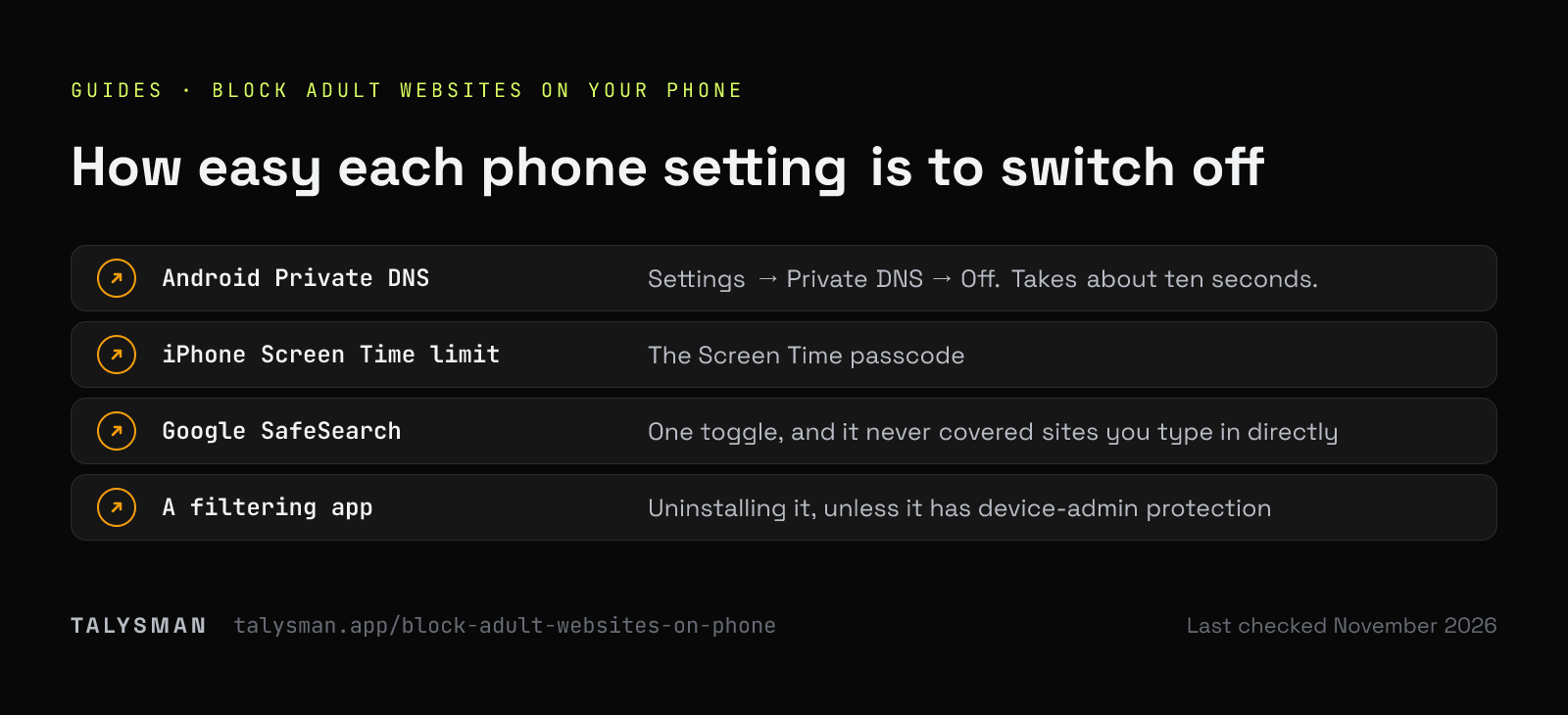
How easy each setting is to switch off
These settings aren't hard to set up. What matters is what happens when you want them gone.
| Setting | Switched off by | Makes it harder |
|---|---|---|
| Android Private DNS | Settings → Private DNS → Off. Takes about ten seconds. | A parental-control account, or a filtering app with its own lock |
| iPhone Screen Time limit | The Screen Time passcode | Someone else choosing the passcode |
| Google SafeSearch | One toggle, and it never covered sites you type in directly | A supervised Google account |
| A filtering app | Uninstalling it, unless it has device-admin protection | A PIN held by someone else |
The pattern holds for every option: a setting you control alone is easy to undo, and one someone else controls isn't.
If it's the computer, not the phone
The phone is done. For a lot of people, the laptop late at night is the harder part. This is the computer side, with Talysman.
- Phone
Private DNS is on and someone else holds the Screen Time passcode. The phone is covered.
- Laptop, late
The urge moves to the laptop. You type an adult site's address and get the block page, in every browser.
- Turn off
You open Talysman to turn it off. It says: insert your key to turn off the blocker.
- The key
The USB key is with the same person who set your phone passcode. That's not a call you'll make at midnight.
What this guide can't promise
No filter catches every adult site, and there's always a workaround on a device you own: a VPN, a different network, a factory reset. These settings won't make relapse impossible. They make it slower, and slower is often enough.
Talysman isn't a phone app, and this page isn't a pitch for one. If the computer matters too, the pornography blocker page explains what it does there.
Frequently asked questions
How do I block adult websites in Chrome on Android?
Use Private DNS (the Android steps above). Chrome on Android has no built-in adult site filter of its own, but Private DNS applies to Chrome and every other app on the phone.
How do I block 18+ websites on Android for free?
Private DNS with family.cloudflare-dns.com or adult-filter-dns.cleanbrowsing.org is free, needs no app, and covers the whole phone.
Will Private DNS slow down my phone?
Not noticeably. It only changes who answers your phone's address lookups, and these family filters are run by large DNS providers.
Does Talysman have a phone app?
No. Talysman runs on Windows, Mac and Linux. On your phone, use the free settings above.
Last checked
Now cover the computer
Talysman blocks over 400,000 adult sites in every browser on Windows, Mac and Linux. Turning it off needs a USB key, so give the key to the person who holds your phone passcode.
Get the computer blockerFree forever, no card. Want schedules and app blocking? Try Pro free for 14 days.